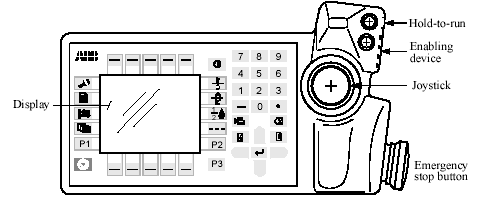
The Teach Pendant
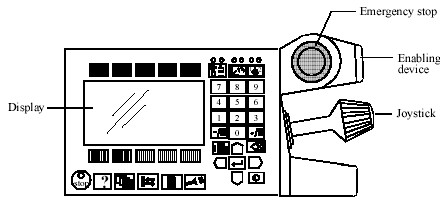
There are two versions of the teach pendant.
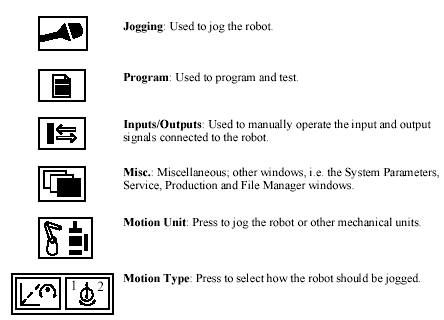
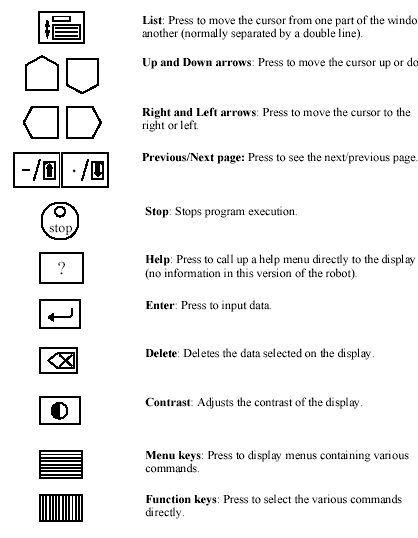
Entering text using the teach pendant
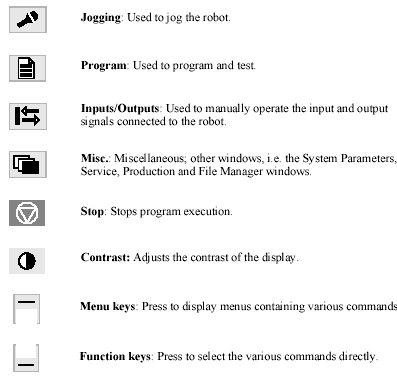
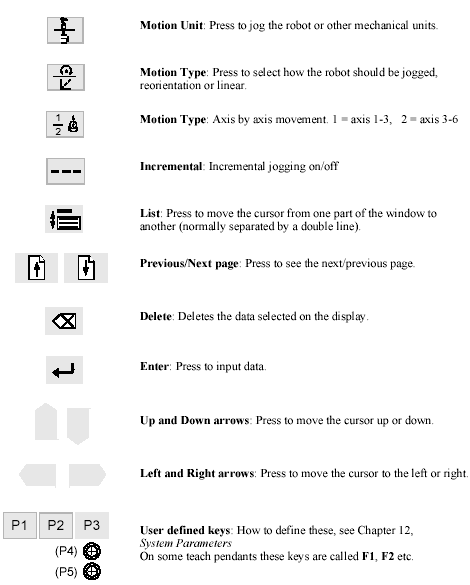
When naming files, routines, data, etc., text can be entered using the teach pendant. As there is no character keyboard available, the numeric keyboard is used in a special way
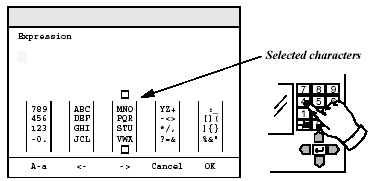
The keys on the numeric keyboard correspond to the selected characters on the display.
• Select a group of characters by pressing the function key -> or <-.
• Press the corresponding key on the numeric keyboard. If the third group is selected , 7 corresponds to M, 8 to N, 9 to O, etc.
• Move the cursor to the right or left using ArrowLeft or ArrowRight .
• Delete the character in front of the cursor by pressing Delete .
• Switch between upper and lower case letters by pressing A-a.
• When you have finished entering text, press OK.
Error Management
If an error occurs, an error message will be displayed in plain language on the teach pendant . If several errors occur simultaneously, the error that occurred first will be selected.
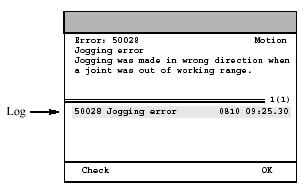
An error message is displayed in plain language as soon as an error occurs.
All errors and status changes are also registered and time-stamped in a log.
Confirming an error message
• Press OK.
The window displayed before the error occurred will be displayed once more. If you want to view an error message later on, you can find it in the log
Calling up suggestions on how to correct an error
• Press Check.
Information about possible corrective measures is displayed, along with the reason for the error .
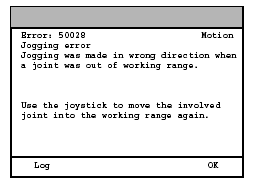
Suggestions on how to correct an error.
• Press Log to display the log instead of the check list.
Acknowledging warning messages
Sometimes, a warning or information message will be displayed. This message is displayed in the form of a minimised alert box that conceals only part of the previous window.
• Acknowledge the message by pressing Enter .